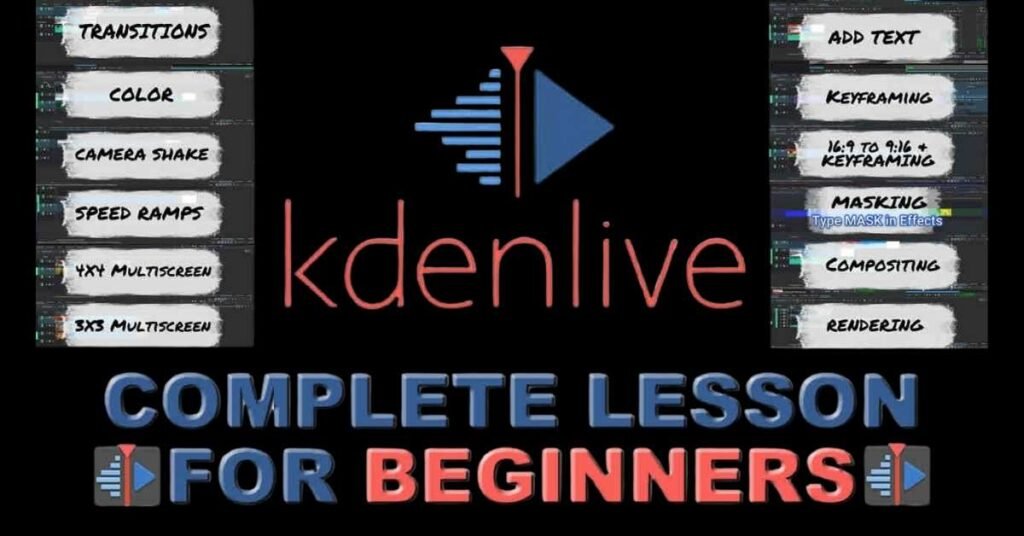
If you’ve been staring at Adobe Premiere’s $55/month price tag and thinking there has to be a better way, you’re right. Kdenlive is a free, open-source video editing software built on the MLT Framework, and it’s genuinely powerful enough to produce YouTube-ready content without costing a dollar. This guide shows you exactly how to use Kdenlive for beginners, step by step, in 2026.
No fluff. No theory. Just what actually works.
Who Should Use This Guide (And Who Shouldn’t)
Use this if you’re
- A content creator is tired of paying for editing tools
- A student or freelancer starting with video editing
- Someone switching from Windows Movie Maker or iMovie
Skip it if you’re
- A professional colorist needing DaVinci Resolve-level grading
- Someone editing multi-camera live productions at scale
How to Use Kdenlive for Beginners: Installation First

Getting started with Kdenlive takes under five minutes. Head to kdenlive.org and grab the installer for your OS.
- Windows: Run the .exe installer. Done.
- macOS: Drag the .dmg to Applications. If Gatekeeper blocks it, go to System Preferences > Security and click “Open Anyway.”
- Linux: Use Flatpak for the most stable, up-to-date version. Run flatpak install flathub org.kde.kdenlive in your terminal.
Kdenlive runs on Linux, Windows 7 or higher, macOS, and even FreeBSD — built with C++ on KDE Frameworks 5 (KF5), making it lightweight for what it delivers.
Pro Tip: Enable proxy clips immediately after installation — your timeline will thank you.
Once installed, launch it. The configuration wizard appears. Accept the defaults unless you’re on a weak machine, then drop the preview resolution to 720p.
Check Out This Helpful Guide: Use AI in Google Sheets Free
Understanding the Interface Before You Touch Anything
New users panic at Kdenlive’s interface. Don’t. It’s five zones:
| Panel | What It Does |
|---|---|
| Project Bin | Stores all your imported media |
| Clip Monitor | Previews individual clips |
| Project Monitor | Shows your full edited timeline |
| Timeline | Where you actually edit |
| Effect Stack | Where do you actually edit |
If panels shift around accidentally, hit Settings > Reset Layout. You’re back to normal in one click.
The three tools beginners actually need: Selection (F1), Razor (X), and Spacer. Everything else comes later.
Importing and Organizing Your Media
Adding Clips to Your Project
Drag your footage directly into the Project Bin or press Ctrl+I. Kdenlive handles MP4, MOV, MKV, AVI, PNG, JPEG, MP3, and WAV natively via FFmpeg support and libav formats—basically everything.
Here’s what beginners miss entirely: proxy clips. When you import 4K footage, Kdenlive can generate a lower-resolution stand-in for editing, then use the original for export. Enable this under Project Settings > Proxy Clips. On a mid-range laptop, this cuts timeline lag by 60–70%.
Project and Asset Management Done Right
Right-click inside the Project Bin and create folders. Label them: Raw Footage, B-Roll, Music, Graphics. Do this before you start editing. Reorganizing 40 clips mid-project is miserable.
One thing nobody warns you about: if you move your source files after importing, Kdenlive shows a “missing clip” error. Keep everything inside one project folder from day one.
Pro Tip: Save your project file inside the same folder as your media.
Cutting and Assembling Your First Edit
Drag a clip from the Project Bin down to the Timeline. It lands on V1 (Video Track 1). Now the real work starts.
Two cuts every beginner needs to know
- Razor Tool (X): Splits a clip exactly where your playhead sits
- Trim (drag clip edges): Shortens from either end without splitting
Right-click any gap between clips and select Remove Space; this snaps everything together without manually sliding clips. That one trick alone saves beginners twenty minutes per session.
For multi-track editing, Kdenlive supports unlimited video and audio tracks, stacked however you need. Titles go on V2 above your main footage. Music lands on A2 below your dialogue track.
Mastering Kdenlive as a beginner really comes down to three shortcuts: Space (play/pause), X (cut), and Ctrl+Z (undo). Commit those three to muscle memory, and the rest follows naturally.
Effects, Filters, and Transitions
What Actually Works (And What to Skip)
Open View > Effects to browse Kdenlive’s library. The useful ones for beginners:
- Crop and Transform: Ken Burns zoom effect, repositioning
- Blur: mosaic faces or cover watermarks
- Vignette: cinematic edges, adds depth instantly
- Hue/Saturation/Brightness: simple color pop without curves
Custom effects in Kdenlive extend further via Frei0r plugins and LADSPA libraries for audio processing; these install automatically on most Linux distros and are bundled in the Windows installer.
Check Out This Helpful Guide: How to Add AI Voice to Video
Adding Transitions Without Overdoing It
Drag a transition from the Effects panel to the cut point between two clips. Dissolve works for lifestyle and travel content. Hard cuts work better for talking-head YouTube videos. That’s genuinely the whole decision tree for 90% of beginner projects.
Pro Tip: Less is more — one clean transition beats five flashy ones.
Avoid the star wipe. Just avoid it.
Titles, Graphics, and Text Overlays
Go to Project > Add Title Clip. The built-in title editor opens, add your text, pick a font (avoid anything thin at small sizes), set your color, and position it.
For lower-thirds those name tags you see under interviewees, place the title clip on V2, aligned to the bottom third of your frame. Stretch or shrink it on the timeline to control how long it appears.
Save your title as a template. Every future video with the same branding pulls it in with two clicks. This is the kind of time-saving trick that separates organized editors from chaotic ones.
Color Correction Basics (The Right Order Matters)
Switch to the color workspace: View > Load Layout > Color. Now follow this sequence, skipping steps, produces muddy results:
- Fix exposure (Lift/Gamma/Gain or Curves)
- Fix white balance (reduce unwanted color cast)
- Boost saturation slightly (5–10% max for natural looks)
Kdenlive supports .cube LUT imports, downloadable cinematic color grades you apply in one click. Free LUT packs are widely available and instantly elevate amateur footage.
Use the waveform scope to judge exposure objectively, not just by eye. Your monitor’s brightness lies to you. The scope doesn’t.
Audio Editing: The Part Most Beginners Ruin

Adjusting Volume and Levels
Right-click any clip > Audio > Volume, or use the Effect Stack. Target these levels:
- Dialogue: -12 to -6 dB
- Background music: -20 to -18 dB
The Audio Mixer panel (View > Audio Mixer) lets you ride levels in real time. Keyframe your volume to fade music in and out; a smooth three-second fade-out at the end of a video sounds professional. A hard stop doesn’t.
Adding Background Music Without Killing Your Dialogue
Import music into A2. Trim it to fit. Then, and this is what separates polished videos from amateur ones, duck the music under speech. Keyframe the music volume down during talking sections, back up during b-roll. It takes four minutes and makes a huge difference.
Free, royalty-safe music sources:
Pro Tip: Always edit audio with headphones to hide problems.
Exporting Your Video: YouTube-Ready Settings
Hit Ctrl+Enter to open the render dialog. Select the preset “YouTube 1080p”, it’s already built in. For custom projects, use these settings:
| Setting | Value |
|---|---|
| Resolution | 1920×1080 |
| Codec | H.264 |
| Bitrate | 8–12 Mbps |
| Audio | AAC, 320 kbps, Stereo |
| Frame Rate | Match source (24/30/60fps) |
For 4K, bump resolution to 3840×2160 and bitrate to 35–45 Mbps. Save this as a custom preset so you never configure it again.
A 10-minute 1080p video renders in roughly 5–15 minutes on a mid-range machine. Watch the exported file once before uploading, catching a mistake post-export beats catching it after 10,000 views.
Check Out This Helpful Guide: Backup Your Computer in 2026
Common Mistakes Beginners Make in Kdenlive
Overusing effects: Just because the filter library has 80 options doesn’t mean your video needs 12 of them. If an effect doesn’t serve the story, remove it. Good editing is invisible.
Ignoring audio balance: This is the #1 reason beginner videos feel amateurish. Upload with music drowning dialogue, and viewers click away in eight seconds. Mix for -14 LUFS integrated YouTube’s target loudness standard. Use the EBU R128 loudness effect in Kdenlive’s Effect Stack to check it.
FAQ: Real Questions Beginners Actually Ask
Is Kdenlive good enough for YouTube in 2026?
Yes. The stable release (25.12.2) handles 4K footage, color correction, multi-track editing, and export formats that YouTube accepts perfectly.
Does Kdenlive work on low-end PCs?
It runs on modest hardware, enables proxy clips, and drops preview resolution to 720p. That combination makes even older machines workable.
What’s the difference between Kdenlive and DaVinci Resolve?
DaVinci Resolve has superior color grading and audio tools. Kdenlive is lighter, simpler, and has zero cost, including no “free tier” limitations.
Can I use Kdenlive commercially?
Yes. It’s released under the GNU GPL (GPL-2.0-or-later / GPL-3.0-or-later), so commercial use is permitted. Just don’t confuse the software license with your media licenses.
Does Kdenlive support plugins?
Frei0r effects for video and LADSPA/SoX libraries for audio processing expand what’s possible significantly.
Why does Kdenlive keep crashing on export?
Usually, it’s a GPU driver issue or a corrupted project cache. Clear the cache under Settings > Clear Cache and update your GPU drivers first.
Final Thought
Kdenlive isn’t a compromise; it’s a genuinely capable libre video editor that competes with tools costing hundreds of dollars per year. For anyone learning video editing with Kdenlive for the first time, it hits the right balance of power and accessibility.
The learning curve is real but short. By day three, the interface clicks. By week two, you’re editing faster than you expected.
If you want professional-looking videos without a subscription eating into your budget, this is the tool. Start with the installation, enable proxy clips, and export your first video today. It doesn’t need to be perfect. It just needs to exist.

Ansa is a highly experienced technical writer with deep knowledge of Artificial Intelligence, software technology, and emerging digital tools. She excels in breaking down complex concepts into clear, engaging, and actionable articles. Her work empowers readers to understand and implement the latest advancements in AI and technology.