
...

Ai learning

image 1

Gemini vs Bing: My Honest, Data-Driven Comparison After Using Both

I’ve spent a good amount of time testing AI tools, and two names keep popping up everywhere: Google Gemini and Microsoft Bing. Both promise smarter answers, faster results, and a more “human” way to interact with the internet. But let’s be real—just because something sounds futuristic doesn’t mean it actually works better in daily life. So I decided to compare Gemini vs Bing based on real usage, not hype. I focused on accuracy, speed, usability, and practical value. No fluff, no random claims—just what actually matters if you plan to use these tools seriously. What Is Gemini and What Is Bing AI? Before diving into comparisons, I want to quickly explain how these two tools differ at their core. Gemini is Google’s AI model integrated into its ecosystem. It powers features inside Google Search, Gmail, Docs, and more. It focuses on understanding context and delivering structured, informative responses. Bing AI, powered by Microsoft, integrates with Bing search and tools like Edge browser and Copilot. It blends traditional search with conversational AI. In simple terms: That difference shapes everything. My First Impression: Interface and Ease of Use When I first used Gemini, it felt clean and familiar. That makes sense because Google designed it to fit seamlessly into its ecosystem. I didn’t need to “learn” anything. I just typed like I normally would in search. Bing, on the other hand, felt more like chatting with an assistant. It has conversation modes, tone options, and follow-up prompts. That sounds cool—and it is—but it also adds complexity. From my experience: If you prefer minimalism, you’ll lean toward Gemini. If you enjoy back-and-forth conversations, Bing feels more engaging. Accuracy: Which One Gives Better Answers? Accuracy matters more than anything. A fancy UI means nothing if the answers are wrong. I tested both tools across different types of queries: factual questions, how-to guides, and current topics. Here’s what I noticed: Gemini often delivers structured, concise answers. It feels like a refined version of Google Search results. It avoids unnecessary creativity and sticks closer to verified information. Bing sometimes gives more detailed responses, but it can occasionally over-explain or include assumptions. That conversational tone can lead to slightly less precise answers. According to official documentation from Google and Microsoft, both systems rely on large language models trained on vast datasets, but they also use real-time web data to improve accuracy. That said, real-time data doesn’t always mean correct data. My verdict: If I need reliable information quickly, I trust Gemini more. Speed and Performance I care about speed more than I expected. Waiting even a few extra seconds feels annoying when I’m in the middle of work. Gemini responds almost instantly. It feels optimized for quick retrieval and summarization. Bing takes slightly longer, especially when generating longer responses. That delay likely comes from its conversational formatting and deeper processing. The difference isn’t huge, but it’s noticeable in daily use. So, in terms of speed: Content Quality: Who Writes Better? This is where things get interesting. When I ask both tools to generate content—like blog ideas, summaries, or explanations—Bing tends to sound more human and conversational. It adds personality and flow. Gemini stays more structured and factual. It feels more like a researcher than a writer. For example: Neither is “better” universally—it depends on what you need. If I’m writing professional content, I prefer Gemini’s clarity.If I’m brainstorming or drafting casually, Bing feels more creative. Real-Time Information and Search Integration Both tools claim to provide real-time information, but they approach it differently. Gemini integrates deeply with Google Search. That gives it access to one of the largest and most refined search indexes in the world. Bing also uses real-time data, but its search engine isn’t as dominant as Google’s. That can affect the depth and relevance of results. From my testing: If you rely heavily on up-to-date information, Gemini has a slight edge. Integration With Other Tools This is where ecosystem matters a lot. Gemini works seamlessly with Google tools like Docs, Sheets, Gmail, and Drive. If you already use Google Workspace, it feels like a natural upgrade. Bing integrates with Microsoft products like Word, Excel, and Edge browser through Copilot. So the real question becomes:Which ecosystem do you use more? There’s no universal winner here—it depends on your workflow. Use Cases: When I Prefer Gemini vs Bing After using both tools for different tasks, I naturally started choosing one over the other depending on what I needed. I Use Gemini When: I Use Bing When: This pattern developed naturally—it wasn’t forced. SEO and Content Creation Perspective As someone focused on SEO, I pay attention to how these tools generate content. Gemini aligns more closely with Google’s search principles. It emphasizes clarity, relevance, and factual accuracy—things that Google actually rewards. Bing, while powerful, sometimes leans toward verbosity. That can hurt readability if not edited properly. From an SEO standpoint: If your goal is ranking on Google, Gemini feels more aligned with that ecosystem. Limitations I Noticed No tool is perfect, and both have their flaws. Gemini Limitations: Bing Limitations: Understanding these limitations helps me use each tool more effectively. Security and Trustworthiness Both Google and Microsoft emphasize responsible AI development. They include safety filters, fact-checking layers, and user feedback systems. However, no AI tool guarantees 100% accuracy. That’s why I always verify critical information using trusted sources like official websites or academic references. This aligns with Google’s E-E-A-T principles (Experience, Expertise, Authoritativeness, Trustworthiness), which matter for both users and search engines. Final Verdict: Gemini vs Bing After using both extensively, I don’t think this is a “winner takes all” situation. Here’s my honest conclusion: If I had to pick one for daily productivity, I’d choose Gemini because it feels faster, cleaner, and more reliable. But I still use Bing when I want a more human-like interaction or creative boost. My Practical Advice Instead of choosing one tool blindly, I recommend using both strategically. Think of it like this: When you combine both, you get the best

Gemini vs Bing: My Honest, Data-Driven Comparison After Using Both Read More »

Xiaomi 17 hands on stuff kv

Xiaomi 17 Pro Max Review – My Honest Experience After Testing It

When I first got my hands on the Xiaomi 17 Pro Max, I didn’t expect it to surprise me this much. I’ve reviewed plenty of smartphones, and most follow the same formula—bigger screen, slightly better camera, and a new chipset. But this time, I noticed Xiaomi trying to refine the experience instead of just chasing specs. In this review, I’ll walk you through everything I experienced—from design to performance—using real insights, not hype. If you’re thinking about buying this phone, this will help you make a smart decision. First Impressions – Premium Feel Without the Premium Price Shock The moment I unboxed the Xiaomi 17 Pro Max, I noticed how polished it felt. The glass back, slim frame, and balanced weight made it comfortable to hold. I didn’t feel like I was using a “budget flagship.” Xiaomi clearly focused on build quality here. The matte finish reduces fingerprints, which I appreciate because glossy backs annoy me quickly. The camera module looks bold but not excessive. It blends well with the overall design instead of sticking out awkwardly. I’ve used devices from Apple and Samsung, and while Xiaomi still sits slightly behind them in finish, the gap feels much smaller now. Display – Smooth, Bright, and Easy on the Eyes I spend a lot of time watching videos and scrolling through apps, so the display matters a lot to me. Xiaomi delivered here. The phone features a large AMOLED display with a high refresh rate, which makes everything feel smooth. Scrolling through apps, playing games, and even simple animations look fluid. Brightness levels impressed me the most. Even under direct sunlight, I didn’t struggle to read content. That’s a big win because many phones fail in outdoor visibility. Colors look vibrant but not overly saturated. I didn’t need to tweak settings much. Xiaomi seems to have tuned the display well out of the box. Performance – Fast Enough for Almost Everything I tested the Xiaomi 17 Pro Max with daily tasks, gaming, and multitasking. It handled everything without noticeable lag. Apps opened quickly, and switching between them felt seamless. I played heavy games like BGMI and Call of Duty Mobile, and the performance stayed stable. The chipset inside this phone competes well with other flagship processors. While it may not beat the absolute top-tier chips from Qualcomm in benchmarks, I didn’t feel any real-world difference during usage. For most users, this phone offers more than enough power. Camera – Strong, But Not Perfect Let’s talk about the camera because this is where most buyers focus. Daylight Photography In good lighting, the Xiaomi 17 Pro Max captures sharp and detailed images. Colors look natural, and dynamic range performs well. I didn’t need to edit photos much before sharing them. Low Light Performance Low-light photography shows improvement compared to older Xiaomi devices. Night mode helps bring out details, but sometimes images look slightly over-processed. Selfie Camera The front camera performs well for social media. Skin tones look accurate, and images don’t feel overly filtered. Video Recording Video quality stays stable with good stabilization. However, I noticed occasional inconsistencies in exposure during fast lighting changes. Overall, the camera performs well but doesn’t fully beat premium competitors from brands like Google or Apple. Battery Life – Reliable for Daily Use Battery life matters more than flashy features, and this phone gets it right. I easily got through a full day with moderate to heavy usage. That includes social media, streaming, gaming, and camera usage. Charging speeds impressed me even more. Xiaomi continues to lead in fast charging, and I didn’t need to wait long to get back to 100%. For someone like me who hates carrying chargers everywhere, this phone reduces that stress. Software Experience – Improved, But Still Needs Polish The Xiaomi 17 Pro Max runs on Xiaomi’s latest UI based on Android. The experience feels smoother compared to older versions. Animations look refined, and system stability has improved. However, I still noticed some pre-installed apps that I didn’t need. The good part? Most of them can be removed easily. Xiaomi has clearly worked on reducing bugs, and I didn’t face major issues during my usage. Still, I’d like to see a cleaner, more minimal interface in future updates. Connectivity and Features – Everything You Need This phone supports 5G connectivity, Wi-Fi 6, and Bluetooth upgrades, making it future-ready. Call quality stayed clear, and I didn’t face network drops during testing. The in-display fingerprint sensor works quickly and accurately. Face unlock also performs well in good lighting conditions. Stereo speakers deliver decent sound quality. While they don’t replace a dedicated speaker system, they work well for casual media consumption. Gaming Experience – Smooth and Consistent As someone who enjoys mobile gaming, I pushed this device hard. The Xiaomi 17 Pro Max handled long gaming sessions without overheating too much. Frame rates stayed stable, and I didn’t experience major drops. The touch response feels accurate, which matters a lot in competitive games. Gamers looking for a reliable device will find this phone more than capable. What I Liked the Most I always look for practical improvements, not just marketing features. Here’s what stood out for me: Where It Could Improve No phone is perfect, and I want to stay honest: Is Xiaomi 17 Pro Max Worth Buying? After using the Xiaomi 17 Pro Max, I can say this confidently: it offers excellent value for money. If you want a phone that balances performance, battery, and display without spending top flagship prices, this is a strong option. However, if camera performance is your top priority, you might still prefer devices from Apple or Google. Final Verdict – My Personal Take I enjoyed using the Xiaomi 17 Pro Max more than I expected. It doesn’t try to be perfect, but it focuses on what actually matters. Xiaomi seems to understand its users better now. Instead of chasing gimmicks, it delivers a well-rounded experience. Would I recommend it? Yes, especially for users who want a powerful phone
Xiaomi 17 Pro Max Review – My Honest Experience After Testing It Read More »

AI Chat Apps

Best AI Chatbot Free: My Honest Guide After Testing Dozens of Tools

I’ve spent the last couple of years testing AI tools almost daily. Some impressed me instantly, while others felt like overhyped demos with fancy landing pages. When it comes to finding the best AI chatbot free, I’ve learned one thing the hard way: not all “free” tools are actually useful. So in this guide, I’ll walk you through the best free AI chatbots I’ve personally explored, what they’re good at, where they fail, and how you can choose the right one without wasting hours. Why I Started Looking for a Free AI Chatbot At first, I just wanted help writing content faster. Then I realized AI chatbots could do much more—coding, research, summarizing, even brainstorming business ideas. But here’s the catch: most tools either lock features behind paywalls or limit usage so much that they become frustrating. That’s why I focused only on tools that offer real value for free users, not just trial bait. What Makes a “Best Free AI Chatbot”? Before I jump into tools, let me explain how I judge them. I don’t just look at hype—I test them on real tasks. Here’s what matters to me: I also stick to tools backed by credible companies like OpenAI, Google, and Microsoft because trust matters. 1. ChatGPT (Best Overall Free AI Chatbot) If I had to recommend just one tool, it would be ChatGPT. Built by OpenAI, this chatbot feels like the most balanced option for everyday use. What I Like Where It Falls Short My Take I use ChatGPT almost daily. Whether I’m writing content or solving problems, it rarely disappoints. For beginners, this is hands-down the best free AI chatbot to start with. 2. Google Gemini (Best for Research and Real-Time Info) Next, I tested Gemini, developed by Google. This one feels like a smart assistant connected directly to the internet. What I Like Limitations My Experience Whenever I need updated information or quick research, I switch to Gemini. It feels like Google Search evolved into a conversation. 3. Microsoft Copilot (Best for Productivity) Copilot, powered by Microsoft, focuses heavily on productivity. What I Like Limitations My Take If you use Word, Excel, or Edge browser, Copilot can save you a lot of time. For general chatting, though, I still prefer ChatGPT. 4. Perplexity AI (Best for Cited Answers) One thing that annoyed me about many chatbots was the lack of sources. That’s where Perplexity AI stands out. What I Like Limitations My Experience When I want facts with sources, I use Perplexity. It’s not the best storyteller, but it’s a reliable researcher. 5. Poe by Quora (Best for Trying Multiple AI Models) Poe gives you access to multiple AI models in one place. What I Like Limitations My Take If you’re curious and like experimenting, Poe is fun. But if you want simplicity, stick to ChatGPT or Gemini. Free vs Paid AI Chatbots: What You Should Know Let’s be honest—free tools always come with trade-offs. Here’s what I’ve noticed: But here’s the good news: for most users, free versions are more than enough. Unless you’re running a business or doing heavy automation, you don’t need to upgrade. How I Use Free AI Chatbots Daily To give you a real picture, here’s how I actually use them: I don’t rely on one tool only. I switch depending on the task. Common Mistakes People Make (I Did Too) When I started, I made some classic mistakes. 1. Expecting Perfect Answers AI is powerful, but not perfect. You still need to verify facts. 2. Using Vague Prompts If you ask vague questions, you’ll get vague answers. Simple. 3. Ignoring Multiple Tools Different tools excel at different things. Don’t stick to just one. Tips to Get Better Results from AI Chatbots Here’s what actually improved my results: These small changes make a huge difference. Are Free AI Chatbots Safe and Reliable? This is a fair question. Companies like OpenAI, Google, and Microsoft follow strong safety and privacy practices. Still, I avoid sharing sensitive information. Also, I always verify critical data from trusted sources like: AI should assist your thinking—not replace it. So, Which Is the Best Free AI Chatbot? If you’re asking me personally: There’s no single winner for everything. It depends on your needs. Final Thoughts After testing dozens of tools, I can confidently say we’re living in the best time to use AI—for free. You don’t need expensive software anymore. You just need the right chatbot and the right approach. If you’re just starting, go with ChatGPT. It’s simple, powerful, and beginner-friendly. And here’s my honest advice: don’t overthink it. Start using one tool today, experiment with it, and learn as you go. Because once you understand how to use AI properly, it stops being just a tool—and starts becoming your unfair advantage. Harsh MahilangHarsh Mahilang is a rare blend of logic and lyricism, a unique duality that sets him apart from the standard developer profile by operating at the intersection of Agentic AI and human-centric storytelling. As a Technical Strategist and author of works ranging from the metaphysical “Beyond Dimensions” to his 2026 mental resilience guide, he applies the same precision to his prose as he does to his open-source Python frameworks. Whether engineering autonomous systems on GitHub or crafting suspenseful narratives, Harsh is driven by a singular mission: to code the future while documenting the soul.
Best AI Chatbot Free: My Honest Guide After Testing Dozens of Tools Read More »

Google Photos AI Features 2026 Remix Magic Editor and New Tools Explained

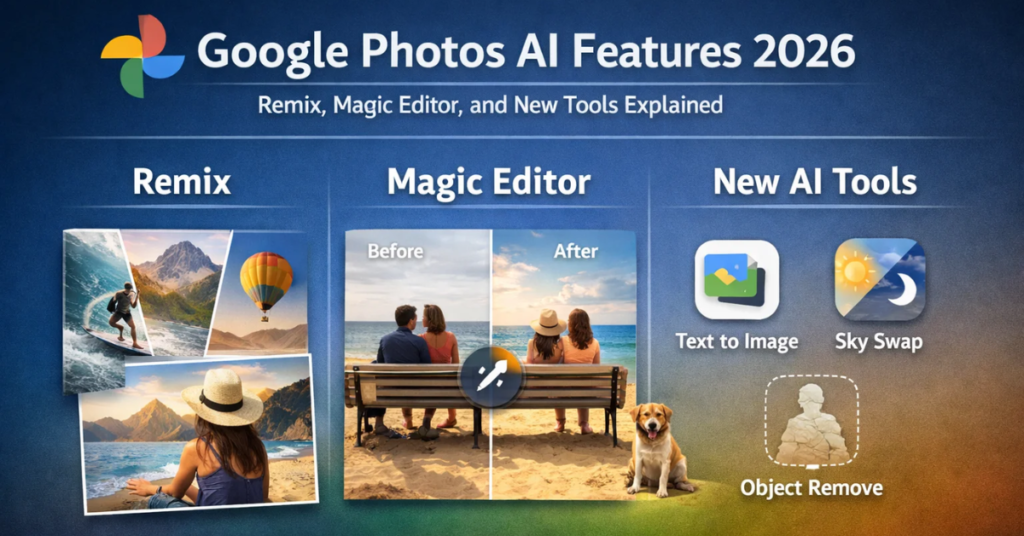
Google Photos AI Features 2026: Remix, Magic Editor, and New Tools Explained

I have been using Google Photos for years, but in 2026 it feels like a completely different product. It is no longer just a storage app. It has turned into a smart editing and memory creation tool powered by advanced AI. In this guide, I will break down the latest Google Photos AI features in 2026, including Remix, Magic Editor, and other new tools. I will explain what actually works, what feels useful in real life, and what still needs improvement. Why Google Photos AI Matters in 2026 Photos are no longer just images. They are stories, memories, and sometimes even content for social media or business. Google has invested heavily in AI through its parent company Google, especially with its Gemini models. These improvements now directly reflect inside Google Photos. According to Google’s official announcements and developer updates, the focus is clear: For users like me, this means less manual work and more intelligent suggestions. What’s New in Google Photos AI Features 2026 The 2026 update introduces several upgrades, but three features stand out: Let me explain each in detail. Remix Feature: Turning Photos into Creative Styles The Remix feature feels like Google’s answer to AI-generated creativity trends. What Remix Does Remix transforms your existing photos into different artistic styles. It can: I tested this feature with travel photos, and the results looked surprisingly polished. It did not feel like a cheap filter. It actually changed the visual mood of the image. Why It Matters People now want quick content for platforms like Instagram and YouTube. Remix helps create visually appealing images without using external apps. Real Use Case I clicked a normal sunset photo. Remix turned it into a cinematic frame with enhanced lighting and color grading. It looked like something edited in professional software. Magic Editor 2026: Smarter and More Practical Magic Editor was already popular, but in 2026 it feels much more refined. Key Improvements Earlier, edits sometimes looked artificial. Now, the transitions feel smoother and more realistic. What I Noticed When I removed a person from a crowded image, the background filled in naturally. Earlier versions struggled with this. Why It Stands Out Magic Editor now competes with professional editing tools. It reduces the need for apps like Photoshop for basic edits. Google has shared in its official blog that these improvements come from better AI models trained on visual understanding. AI-Powered Search: Still the Strongest Feature Google Photos has always led in search, and it continues to dominate in 2026. What It Can Do Now You can search using natural language like: The AI understands context, objects, and even emotions in some cases. Why This Matters Most people have thousands of photos. Finding one specific image manually is frustrating. With AI search, I found a 3-year-old image in seconds just by typing a vague description. This feature is backed by Google’s advancements in computer vision and machine learning, which are widely documented in their research publications. AI Memory Creation and Highlights Google Photos now creates better memory collections automatically. What’s New The AI selects the best photos and compiles them into short videos with music. My Experience I noticed fewer random or irrelevant memories. The selections felt more meaningful and personal. Photo Enhancement Tools: One Tap Improvements Google has simplified editing for casual users. Key Features These tools now rely heavily on AI instead of manual sliders. Why This Works Not everyone wants to learn editing. These tools provide quick results without complexity. Privacy and Data Safety Whenever AI handles personal photos, privacy becomes a concern. Google states that: I still recommend avoiding sensitive uploads, but overall Google maintains strong privacy standards based on its official policies. Limitations of Google Photos AI in 2026 No tool is perfect. I noticed a few limitations. 1. Over-editing in Some Cases Sometimes AI enhances too much, making images look unrealistic. 2. Feature Availability Some tools are limited to specific devices or require Google One subscription. 3. Internet Dependency Many AI features need an active connection. How Google Photos Compares to Other AI Tools Compared to standalone editing apps, Google Photos offers: Advantages Disadvantages If you want quick edits, Google Photos works great. If you want full control, dedicated software still wins. Who Should Use Google Photos AI Features I believe these features are perfect for: Casual Users People who want quick edits and organized memories. Content Creators Creators who need fast visual content. Professionals (Basic Use) Photographers can use it for quick previews and sorting. The Future of Google Photos AI From what I see, Google will continue to push AI deeper into the platform. Expected improvements include: Google is clearly moving toward a fully automated creative assistant. Final Thoughts Google Photos in 2026 is no longer just a gallery app. It has become a smart AI-powered platform that helps you edit, organize, and relive your memories. Remix adds creativity. Magic Editor adds precision. AI search keeps everything accessible. I still use other tools for advanced work, but for everyday use, Google Photos handles almost everything I need. If you have not explored these features yet, it is worth trying them. You might end up using fewer apps than before. Sources These sources provide accurate and verified information about features and AI development. Frequently Asked Questions (FAQ) 1. What are the new AI features in Google Photos 2026? In 2026, Google Photos introduces major AI upgrades like Remix, improved Magic Editor, smarter search, and enhanced memory creation tools. These features focus on automation, creativity, and better user experience. 2. What is the Remix feature in Google Photos? Remix is an AI-powered tool that transforms your photos into different artistic styles. It can turn images into cinematic shots, sketches, or stylized visuals suitable for social media. 3. How does Magic Editor work in 2026? Magic Editor uses AI to edit photos intelligently. It allows you to remove objects, change backgrounds, adjust lighting, and improve composition with minimal manual effort. 4. Is Google Photos AI free to use?
Google Photos AI Features 2026: Remix, Magic Editor, and New Tools Explained Read More »

Google Flow Subscription Pricing Limits and How It Works in 2026

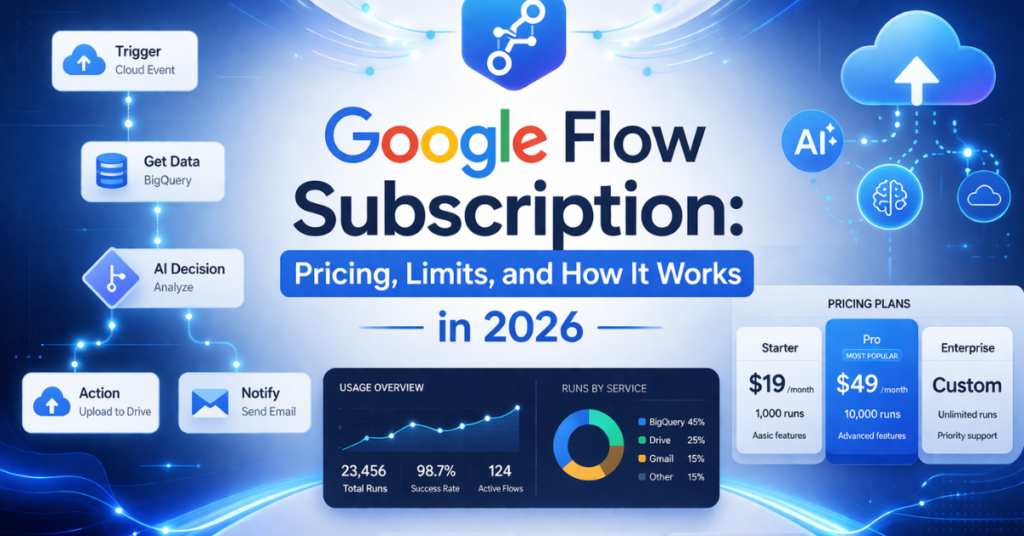
Google Flow Subscription: Pricing, Limits, and How It Works in 2026

I have explored many AI tools over the past year, but one product that caught my attention recently is Google Flow. If you are trying to understand how Google Flow subscription works in 2026, you are in the right place. In this article, I will explain everything in a simple and practical way. No confusing jargon. No unnecessary hype. Just clear information about pricing, limits, and real usage. What Is Google Flow in 2026? Google Flow is an AI-powered workflow and automation tool developed by Google. It helps users automate tasks, connect services, and build intelligent workflows using AI. Think of it as a mix of: The goal is simple. Reduce manual work and improve efficiency. Why Google Flow Matters Right Now Automation is no longer just for developers or large companies. In 2026, even small creators and freelancers use AI workflows daily. Google Flow fits into this shift because: According to Google’s official product updates and AI announcements, the company focuses on making AI accessible for everyday users. Google Flow Subscription Plans in 2026 Google Flow follows a tier-based pricing model. While exact pricing may vary by region, the structure remains consistent. 1. Free Plan This plan is ideal for beginners. What You Get Limitations I found this plan useful for testing ideas, but not for heavy usage. 2. Standard Plan This plan suits regular users and small businesses. What You Get Who Should Use It This is where Google Flow starts becoming practical for daily use. 3. Pro Plan The Pro plan targets advanced users and businesses. What You Get Who Should Use It This plan unlocks the full potential of the platform. Understanding Google Flow Pricing Google has not publicly standardized global pricing for all regions. However, based on official patterns from tools like Google Workspace and AI services, pricing typically follows: This approach aligns with Google’s broader SaaS strategy. Key Features of Google Flow Subscription Let me break down the most important features you actually care about. AI-Powered Workflow Automation Google Flow uses AI to automate tasks intelligently. Instead of creating rigid rules, you can: This reduces setup time significantly. Integration with Google Ecosystem Google Flow connects smoothly with: This integration improves productivity because you do not need external tools. Smart Task Execution The system understands context. It can: This makes automation feel more natural. Real-Time Processing Higher-tier plans offer faster execution. This matters when you: Limits You Should Know Every subscription has limits. Ignoring them can cause problems later. Workflow Limits Each plan restricts: Free users hit these limits quickly. AI Usage Limits AI processing depends on: Advanced workflows consume more resources. Integration Restrictions Some integrations are: Data Handling Limits There may be restrictions on: These limits ensure system stability. Real Use Cases of Google Flow I tested a few real scenarios to see how useful Google Flow actually is. 1. Content Automation I created a workflow that: It saved hours of manual work. 2. Email Management I automated: This reduced inbox clutter significantly. 3. Social Media Workflow I tested: The results were consistent and useful. Pros and Cons of Google Flow No tool is perfect. Let’s keep it real. Pros Cons How Google Flow Compares to Competitors Compared to tools like Zapier or Make, Google Flow focuses more on AI-driven automation. Where It Wins Where It Falls Short Is Google Flow Worth It in 2026? From my experience, it depends on your needs. Worth It If You: Not Ideal If You: Future of Google Flow Google is investing heavily in AI, especially through Gemini models. In the future, I expect: Google clearly aims to make automation accessible to everyone. Final Thoughts Google Flow subscription in 2026 offers a strong mix of AI and automation. It simplifies workflows and reduces manual effort. The free plan helps you get started. The paid plans unlock real power. I suggest starting small. Test workflows. Then upgrade only if needed. That approach saves money and helps you understand the tool better. Sources These sources provide accurate and verified information about Google’s AI ecosystem. Harsh MahilangHarsh Mahilang is a rare blend of logic and lyricism, a unique duality that sets him apart from the standard developer profile by operating at the intersection of Agentic AI and human-centric storytelling. As a Technical Strategist and author of works ranging from the metaphysical “Beyond Dimensions” to his 2026 mental resilience guide, he applies the same precision to his prose as he does to his open-source Python frameworks. Whether engineering autonomous systems on GitHub or crafting suspenseful narratives, Harsh is driven by a singular mission: to code the future while documenting the soul.
Google Flow Subscription: Pricing, Limits, and How It Works in 2026 Read More »

How to Create an AI Human Model

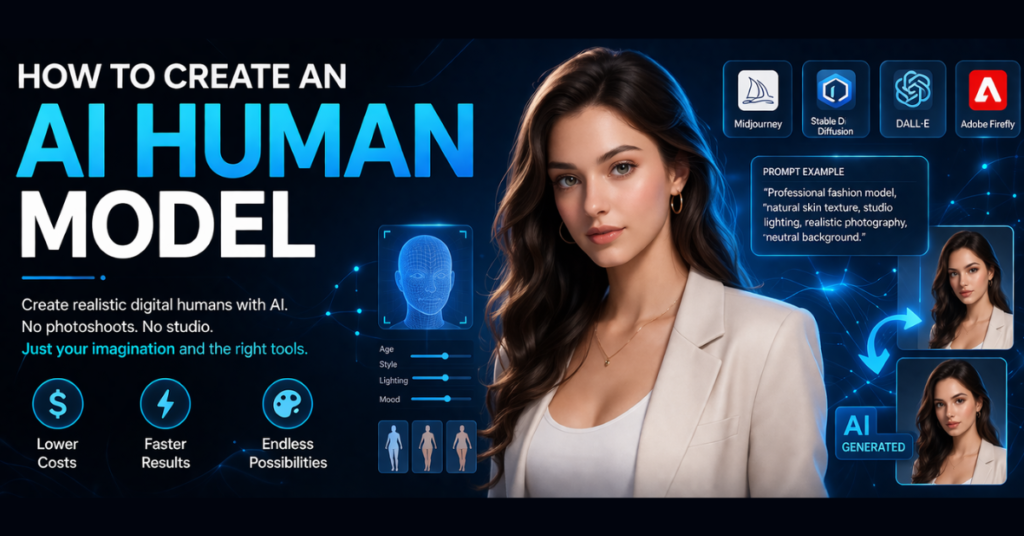
How to Create an AI Human Model

Artificial intelligence continues to transform how we create digital visuals. A few years ago, producing professional human photography required a camera crew, studio lighting, and experienced models. Today, I can generate realistic digital people using advanced tools powered by artificial intelligence. Learning AI model creation allows creators, marketers, and designers to build realistic characters without traditional photoshoots. The technology now produces faces, body poses, clothing, and lighting that often look close to real photography. In this guide, I will explain how I create an AI human model step by step, the tools I trust, and the techniques that improve realism. I will also discuss responsible use and the common mistakes beginners should avoid. How I Understand AI Human Models in Simple Terms? An AI human model refers to a digitally generated person created using artificial intelligence systems that produce images based on data and prompts. These models often appear in: Instead of hiring a physical model and arranging a photoshoot, creators can design digital characters that look realistic and professional. According to research from McKinsey & Company, generative AI could add significant economic value to industries by improving creative workflows and content production. Image generation tools already assist designers and marketers across many sectors. Why More Creators Are Turning to AI Model Creation The rapid growth of generative technology has made AI model creation appealing for businesses and creators. Here are a few reasons why many people explore this approach. Lower Production Costs Professional photoshoots require models, photographers, lighting equipment, and editing time. AI tools reduce many of these costs. Faster Content Production Instead of waiting days for a photoshoot, I can generate several variations of a digital model within minutes. Flexible Visual Style Artificial intelligence allows creators to experiment with different looks, outfits, and environments without physical limitations. Consistent Brand Characters Companies sometimes develop a recurring digital character that represents their brand across campaigns. Several major AI systems help generate these visuals, including platforms developed by OpenAI and Stability AI. AI Tools I Personally Use for AI Model Creation Different tools support AI model creation, but some stand out because of their image quality and customization options. Midjourney Midjourney produces highly detailed portraits and creative visuals. Many designers use it for concept art and digital photography-style images. Stable Diffusion Stable Diffusion allows deeper customization and works through several interfaces. Many advanced users prefer it because it supports extensions and model training. DALL·E DALL·E focuses on generating images from detailed text prompts and supports different creative styles. Adobe Firefly Adobe Firefly integrates directly with the Adobe ecosystem and supports commercial-safe image generation. Each of these tools converts written descriptions into images. The clearer the prompt, the better the result. How I Create an AI Human Model Step by Step Now let me explain the workflow I follow when I create an AI human model. Step 1: Define the Character Concept Before opening any AI generator, I first design the character concept. I usually decide: Clear planning improves the final output because the AI system receives stronger guidance. Step 2: Write a Detailed Prompt Prompts act as instructions for the AI system. Instead of writing something vague like “woman portrait,” I describe the person more clearly. Example: Professional fashion model, natural skin texture, studio lighting, realistic photography, neutral background. Specific details improve the quality of the generated image. Step 3: Generate Multiple Versions The first result rarely becomes perfect. Most platforms allow users to generate several variations. I review each image and choose the most natural-looking version. When evaluating results, I check: This step helps identify the strongest candidate. Step 4: Refine and Edit the Image After choosing the best result, I refine the visual using editing software. Two tools often help with final adjustments. These platforms help correct lighting, enhance colors, or adjust backgrounds. Minor edits can make a digital character appear closer to real photography. Step 5: Use the Model in Projects Once the design looks realistic, I use the generated character in real content. Common uses include: Some online stores now experiment with digital models to showcase clothing collections. How I Make AI Human Models Look More Real Creating convincing digital humans requires careful prompt design and visual awareness. Over time I learned several useful techniques. Include Camera Details Professional photography terms help the AI mimic realistic shots. Examples include: These details guide the system toward photographic results. Avoid Unrealistic Perfection Images sometimes look artificial when faces appear too smooth. Adding phrases such as: can improve authenticity. Test Different Lighting Lighting dramatically changes the final image. I experiment with soft light, natural daylight, or studio setups until the result looks convincing. Ethical Rules to Follow When Creating AI Human Model As AI human model technology grows, responsible use becomes increasingly important. Experts from World Economic Forum highlight the need for transparency when using generative technologies. When working with AI-generated visuals, I follow a few principles. Avoid Impersonating Real Individuals Creating digital characters that resemble real people without permission may raise ethical or legal concerns. Be Transparent If content uses artificial visuals, transparency helps maintain audience trust. Encourage Diversity AI training data sometimes produces biased outputs. Responsible creators aim for diverse representation. Common Mistakes Beginners Make When I first explored AI model creation, I noticed several common mistakes. Writing Weak Prompts Short prompts rarely produce detailed results. Clear descriptions help the AI understand the desired output. Ignoring Lighting and Composition Lighting strongly affects realism. Studio lighting prompts often produce the best images. Overediting Heavy editing can reduce realism. Small adjustments usually work better. The Future of AI-Generated Humans The field continues to evolve quickly. Research in Generative Artificial Intelligence keeps improving image quality and creative possibilities. Future developments may include: As technology improves, creators will likely combine AI visuals with traditional photography workflows. Final Thoughts Learning how to create an AI human model opened new creative opportunities for me. Instead of relying entirely on traditional production, I can now experiment with digital characters and visual concepts using AI
How to Create an AI Human Model Read More »

AI Voice to VideO

How to Add AI Voice to Video Practical Step-by-Step Guide 

The first time I tried to add narration to a video, I realized something quickly: recording voice-overs can be more difficult than editing the video itself. Background noise appears out of nowhere, microphones pick up every tiny sound, and sometimes I had to record the same line ten times just to get it right. That frustration pushed me to explore AI voice technology. Instead of recording audio manually, I could simply type a script and let an AI voice generator convert the text into natural speech. Within seconds, I had a usable voice-over ready for my video. Today, many creators rely on AI voice tools for YouTube videos, tutorials, product demos, social media content, and even full online courses. Research published by McKinsey & Company highlights how generative AI is transforming digital content creation and helping creators produce media faster. In this guide, I will explain how to add AI voice to video, the tools that work best, and the simple process I personally follow to create clear and professional AI voice-overs. What Is an AI Voice? An AI voice is speech generated through artificial intelligence using text-to-speech technology. Instead of recording narration, I write a script and a system converts it into audio automatically. Modern AI voice systems sound surprisingly realistic. Machine learning models analyze large speech datasets to replicate tone, pacing, and pronunciation. Major technology companies such as OpenAI, Google, and Microsoft actively develop advanced speech models to improve natural voice generation. Because of these improvements, AI voice-overs now work well in many types of videos including: For many creators, using an AI voice generator removes the need for microphones or recording studios. Why I Often Add AI Voice to My Videos When I first started creating videos, I recorded every voice-over manually. It worked, but it consumed a lot of time. Once I discovered AI narration tools, my workflow became much faster. Faster Production Recording audio often requires multiple attempts. With AI voice tools, I can generate narration in seconds. This speed helps when creating frequent content. No Recording Equipment Not everyone owns a high-quality microphone or a quiet room. AI narration solves this problem completely. Multiple Language Support Many AI voice platforms support dozens of languages. Research from institutions such as Stanford University shows how neural speech systems now generate multilingual audio efficiently. This means I can easily produce the same video for different audiences. Consistent Voice Quality Human narration changes depending on mood, environment, or recording conditions. AI voice-overs stay consistent across every video. Step-by-Step: How I Add AI Voice to Video Now I will walk through the exact method I use when adding AI narration to a video. Step 1: I Start With a Simple Script Everything begins with the script. AI voices read exactly what I write, so the text must sound natural. I always keep sentences short and conversational. Before generating audio, I read the script aloud. If something sounds awkward, I rewrite it. A well-written script makes even a basic AI voice sound much better. Step 2: Choosing the Right AI Voice Generator Next, I select a reliable AI voice generator. Many platforms provide realistic voice models and allow easy audio export. Popular options include: Feature / Tool Murf AI ElevenLabs Descript PlayHT Primary Use Voiceovers for videos & presentations Ultra-realistic AI voice generation Audio/video editing + transcription AI voice generation + API Voice Quality High-quality, natural Industry-leading realism Good (not top-tier TTS focus) Very realistic, slightly behind ElevenLabs Voice Cloning Yes (limited) Yes (best in class) Yes (Overdub feature) Yes Languages Supported 20+ 30+ 20+ 100+ Ease of Use Very beginner-friendly Simple + developer-friendly Moderate (editing learning curve) Easy Editor / Studio Built-in studio editor Basic editor Full audio/video editor Basic editor API Access Limited Strong API Limited Strong API Best For YouTubers, marketers, eLearning Creators needing ultra-real voices Podcasters, video editors Developers, bulk voice generation Pricing (approx) Mid-range Free + paid tiers Subscription-based Flexible pricing Unique Feature Voice customization + templates Emotion & realism control Edit audio like text Massive language + API support These tools allow me to generate an AI voice over simply by pasting my script. Step 3: Generating the AI Voice After choosing a tool, I paste my script into the generator. Most platforms allow several customization options such as: I usually test multiple voices before selecting the final one. For example, tutorial videos work better with calm narration, while marketing videos often require a more energetic voice. Once satisfied, I export the generated audio file. Step 4: Importing the Voice Into Video Editing Software Now I open my video editor and import the audio. I usually work with tools like: After importing the file, I place the narration track under the video timeline. This is where I officially add AI voice to video. Step 5: Syncing the Voice With the Video Timing matters a lot. If narration and visuals appear at different moments, the video feels confusing. I carefully align the voice-over with each scene. For example: This step greatly improves viewer understanding. Step 6: Improving Audio Quality Even though AI voices already sound clean, small adjustments improve clarity. I often apply: The Audio Engineering Society explains that proper audio processing improves speech clarity in multimedia production. Step 7: Exporting the Final Video Once the audio and video match perfectly, I export the project. Common formats include: After exporting, the video contains both visuals and the final AI voice narration. Best Practices I Follow When Using AI Voice Over time, I learned that small details make a huge difference in how natural an AI voice sounds. Write Like You Speak Natural language works best. If the script sounds robotic, the voice will sound robotic too. Use Pauses Short pauses between sentences improve rhythm and make narration easier to follow. Match Voice to Audience Different projects need different voice styles. Educational content benefits from calm narration, while marketing videos require energy. Avoid Overusing AI Voice Sometimes a real human voice connects better with viewers.
How to Add AI Voice to Video Practical Step-by-Step Guide  Read More »

AI Tools in Excel

How to Use AI Tools in Excel

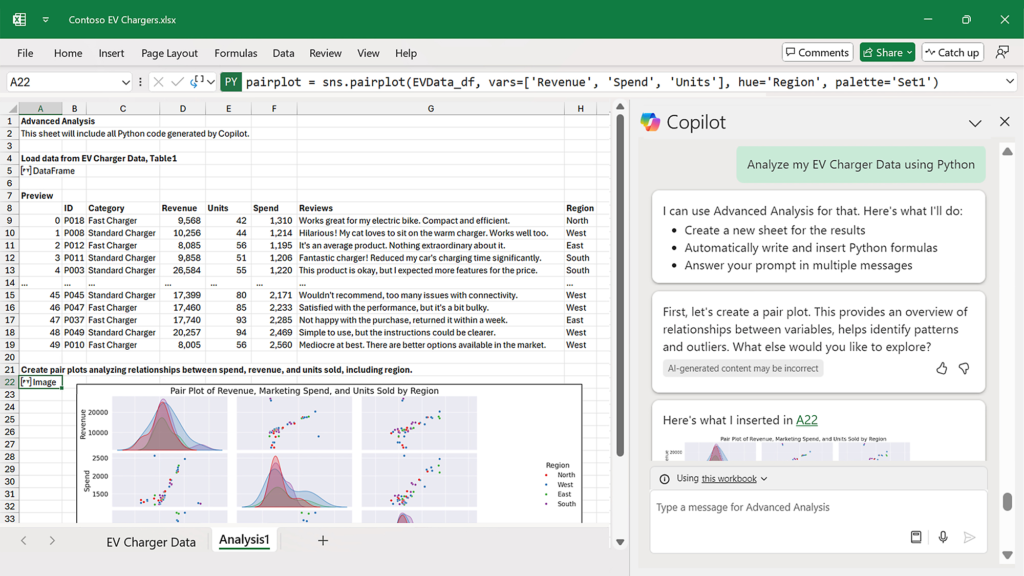
I still remember the first time I tried to clean a messy spreadsheet. Thousands of rows stared back at me. Random formatting, half-written formulas, and duplicate entries everywhere. Excel looked powerful, but it also felt like a maze. I knew the software could do incredible things, yet I spent hours doing tasks that should have taken minutes. Then AI tools entered my workflow, and everything changed. Instead of fighting spreadsheets, I started working with them more intelligently. Artificial intelligence now assists with data analysis, formula generation, automation, and even visualization. These features make spreadsheets far more accessible to beginners while helping experienced users work faster. Today, AI tools in Excel can analyze datasets, suggest formulas, clean messy information, build charts, and automate repetitive work. Microsoft and other technology companies have integrated machine learning into productivity tools, allowing Excel to provide real insights instead of just raw calculations. In this guide, I will explain how I personally use AI features with Excel, how they work, and how beginners can start using them immediately. Why AI Became Essential in My Excel Workflow Before I started using AI tools in Excel, I relied heavily on formulas, manual data cleaning, and trial-and-error analysis. Excel has always offered powerful capabilities such as pivot tables, conditional formatting, and advanced functions. However, many of these features require technical knowledge and time. Artificial intelligence changes that experience. Instead of manually exploring data, Excel can now scan datasets and suggest insights automatically. Modern spreadsheets supported by AI tools can help users: Microsoft introduced several intelligent capabilities in Excel through Microsoft 365, particularly the Analyze Data feature and Copilot integration. According to Microsoft’s official documentation, Excel’s Analyze Data tool can automatically scan structured datasets and generate insights such as summaries, pivot tables, and visualizations. Source: Microsoft Support — Analyze Data in Excel. This means users no longer need advanced analytics skills to start exploring data effectively. Built-In AI Tools in Excel Many people search for external automation software, but Excel already includes several AI tools that make everyday tasks easier. Microsoft has gradually added machine learning features to improve productivity. These built-in tools allow users to extract insights from spreadsheets without writing complicated formulas. Microsoft introduced powerful AI tools in Excel through features like Analyze Data and Copilot, both designed to simplify data analysis. Analyze Data (Previously “Ideas”) The Analyze Data feature acts as an intelligent assistant for exploring datasets. When I upload structured data and click the Analyze Data button, Excel automatically evaluates the information and suggests useful insights. It often generates: For example, when I analyze a sales dataset, Excel frequently highlights the highest performing products or regions. It can also identify patterns that might otherwise remain hidden. Microsoft explains that Analyze Data uses machine learning algorithms to detect relationships between columns and recommend relevant insights. Source: Microsoft Learn — Analyze Data in Excel documentation. This tool allows beginners to discover insights without manually building pivot tables or writing complex formulas. Microsoft Copilot in Excel Another major advancement is Microsoft Copilot, which introduces natural language interaction inside spreadsheets. Instead of writing formulas manually, users can describe tasks using plain language. Copilot then generates the necessary formulas, charts, or summaries automatically. For example, I can type requests like: Copilot analyzes the spreadsheet and produces results instantly. Microsoft states that Copilot combines large language models with Microsoft Graph data to assist users across Office applications. Source: Microsoft — Microsoft 365 Copilot Overview. This feature significantly lowers the learning curve for spreadsheet users. Using AI to Generate Excel Formulas Writing formulas used to slow me down, especially when dealing with nested conditions or lookup functions. Even experienced Excel users sometimes struggle with complex syntax. One of the most practical uses of AI tools is formula generation. Instead of searching documentation or experimenting with formulas, I can simply describe what I want to calculate. For instance, I might ask an AI assistant: “Create an Excel formula to calculate commission when sales exceed 5000.” The AI can instantly generate something like: =IF(A2>5000,A2*0.1,0) Several AI tools in Excel and external assistants help with formula generation, including: According to Microsoft’s official Excel documentation, formulas serve as the foundation for calculations and data analysis in spreadsheets. Source: Microsoft Support — Overview of formulas in Excel. AI tools simply make those formulas easier to create and understand. Cleaning Data Using AI Messy data can completely disrupt analysis. I learned this lesson early in my career after spending hours fixing inconsistent spreadsheets. Spreadsheets often contain: Cleaning this data manually takes time and attention. However, AI tools help detect patterns and automate these corrections. For example, AI-assisted systems can: Excel’s Power Query tool plays an important role in data preparation. Although many people view it as a technical feature, it effectively acts as an intelligent data transformation engine. Microsoft explains that Power Query enables users to import, clean, transform, and automate data workflows. Source: Microsoft Learn — Power Query documentation. Once I started using these tools regularly, my data preparation time dropped dramatically. Using AI to Analyze Large Data Sets Large datasets often overwhelm spreadsheet users. Thousands of rows can make patterns difficult to detect. This is where AI tools provide real value. Artificial intelligence can quickly identify: Excel’s Analyze Data feature evaluates entire datasets and generates summaries within seconds. Instead of manually exploring spreadsheets for hours, I simply review the suggested insights and build reports around them. This approach improves both speed and decision-making accuracy. How I Use AI to Turn Excel Data Into Charts Data becomes easier to understand when presented visually. Charts and graphs help transform raw numbers into meaningful insights. Modern AI tools in Excel assist users by recommending appropriate visualizations. For example: When I use Excel’s intelligent analysis features, the software frequently suggests charts automatically. I can preview them instantly and insert the most useful visualization. Microsoft emphasizes that data visualization improves comprehension because patterns become easier to recognize visually. Source: Microsoft Data Visualization Guidance. How I Automate Repetitive Excel Tasks Using AI

How to Use AI Tools in Excel Read More »