


How to Use AI Tools in Excel
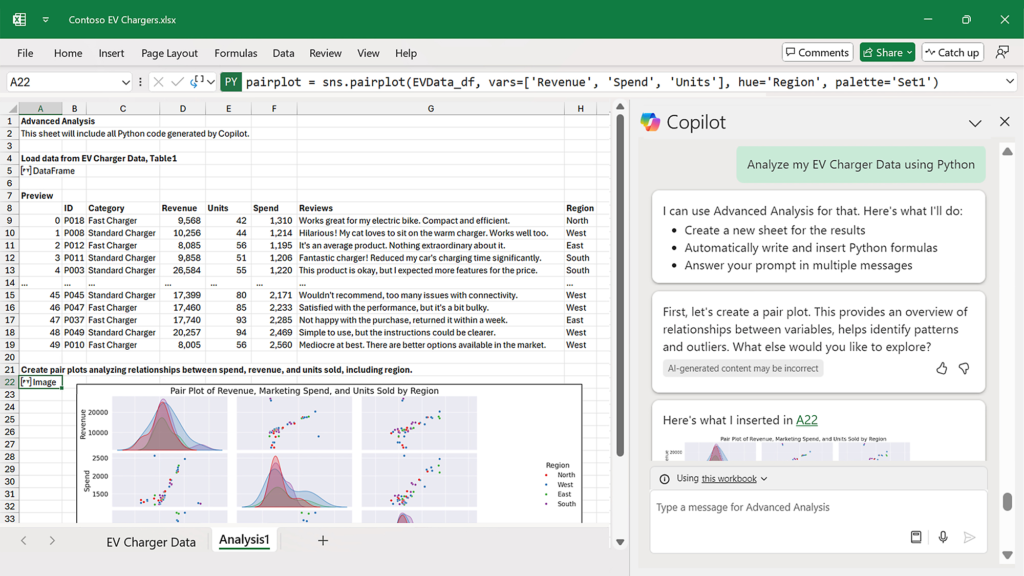
I still remember the first time I tried to clean a messy spreadsheet. Thousands of rows stared back at me. Random formatting, half-written formulas, and duplicate entries everywhere. Excel looked powerful, but it also felt like a maze. I knew the software could do incredible things, yet I spent hours doing tasks that should have taken minutes. Then AI tools entered my workflow, and everything changed. Instead of fighting spreadsheets, I started working with them more intelligently. Artificial intelligence now assists with data analysis, formula generation, automation, and even visualization. These features make spreadsheets far more accessible to beginners while helping experienced users work faster. Today, AI tools in Excel can analyze datasets, suggest formulas, clean messy information, build charts, and automate repetitive work. Microsoft and other technology companies have integrated machine learning into productivity tools, allowing Excel to provide real insights instead of just raw calculations. In this guide, I will explain how I personally use AI features with Excel, how they work, and how beginners can start using them immediately. Why AI Became Essential in My Excel Workflow Before I started using AI tools in Excel, I relied heavily on formulas, manual data cleaning, and trial-and-error analysis. Excel has always offered powerful capabilities such as pivot tables, conditional formatting, and advanced functions. However, many of these features require technical knowledge and time. Artificial intelligence changes that experience. Instead of manually exploring data, Excel can now scan datasets and suggest insights automatically. Modern spreadsheets supported by AI tools can help users: Microsoft introduced several intelligent capabilities in Excel through Microsoft 365, particularly the Analyze Data feature and Copilot integration. According to Microsoft’s official documentation, Excel’s Analyze Data tool can automatically scan structured datasets and generate insights such as summaries, pivot tables, and visualizations. Source: Microsoft Support — Analyze Data in Excel. This means users no longer need advanced analytics skills to start exploring data effectively. Built-In AI Tools in Excel Many people search for external automation software, but Excel already includes several AI tools that make everyday tasks easier. Microsoft has gradually added machine learning features to improve productivity. These built-in tools allow users to extract insights from spreadsheets without writing complicated formulas. Microsoft introduced powerful AI tools in Excel through features like Analyze Data and Copilot, both designed to simplify data analysis. Analyze Data (Previously “Ideas”) The Analyze Data feature acts as an intelligent assistant for exploring datasets. When I upload structured data and click the Analyze Data button, Excel automatically evaluates the information and suggests useful insights. It often generates: For example, when I analyze a sales dataset, Excel frequently highlights the highest performing products or regions. It can also identify patterns that might otherwise remain hidden. Microsoft explains that Analyze Data uses machine learning algorithms to detect relationships between columns and recommend relevant insights. Source: Microsoft Learn — Analyze Data in Excel documentation. This tool allows beginners to discover insights without manually building pivot tables or writing complex formulas. Microsoft Copilot in Excel Another major advancement is Microsoft Copilot, which introduces natural language interaction inside spreadsheets. Instead of writing formulas manually, users can describe tasks using plain language. Copilot then generates the necessary formulas, charts, or summaries automatically. For example, I can type requests like: Copilot analyzes the spreadsheet and produces results instantly. Microsoft states that Copilot combines large language models with Microsoft Graph data to assist users across Office applications. Source: Microsoft — Microsoft 365 Copilot Overview. This feature significantly lowers the learning curve for spreadsheet users. Using AI to Generate Excel Formulas Writing formulas used to slow me down, especially when dealing with nested conditions or lookup functions. Even experienced Excel users sometimes struggle with complex syntax. One of the most practical uses of AI tools is formula generation. Instead of searching documentation or experimenting with formulas, I can simply describe what I want to calculate. For instance, I might ask an AI assistant: “Create an Excel formula to calculate commission when sales exceed 5000.” The AI can instantly generate something like: =IF(A2>5000,A2*0.1,0) Several AI tools in Excel and external assistants help with formula generation, including: According to Microsoft’s official Excel documentation, formulas serve as the foundation for calculations and data analysis in spreadsheets. Source: Microsoft Support — Overview of formulas in Excel. AI tools simply make those formulas easier to create and understand. Cleaning Data Using AI Messy data can completely disrupt analysis. I learned this lesson early in my career after spending hours fixing inconsistent spreadsheets. Spreadsheets often contain: Cleaning this data manually takes time and attention. However, AI tools help detect patterns and automate these corrections. For example, AI-assisted systems can: Excel’s Power Query tool plays an important role in data preparation. Although many people view it as a technical feature, it effectively acts as an intelligent data transformation engine. Microsoft explains that Power Query enables users to import, clean, transform, and automate data workflows. Source: Microsoft Learn — Power Query documentation. Once I started using these tools regularly, my data preparation time dropped dramatically. Using AI to Analyze Large Data Sets Large datasets often overwhelm spreadsheet users. Thousands of rows can make patterns difficult to detect. This is where AI tools provide real value. Artificial intelligence can quickly identify: Excel’s Analyze Data feature evaluates entire datasets and generates summaries within seconds. Instead of manually exploring spreadsheets for hours, I simply review the suggested insights and build reports around them. This approach improves both speed and decision-making accuracy. How I Use AI to Turn Excel Data Into Charts Data becomes easier to understand when presented visually. Charts and graphs help transform raw numbers into meaningful insights. Modern AI tools in Excel assist users by recommending appropriate visualizations. For example: When I use Excel’s intelligent analysis features, the software frequently suggests charts automatically. I can preview them instantly and insert the most useful visualization. Microsoft emphasizes that data visualization improves comprehension because patterns become easier to recognize visually. Source: Microsoft Data Visualization Guidance. How I Automate Repetitive Excel Tasks Using AI
How to Use AI Tools in Excel Read More »